Add comments on previews and resolve them within the Pro editor
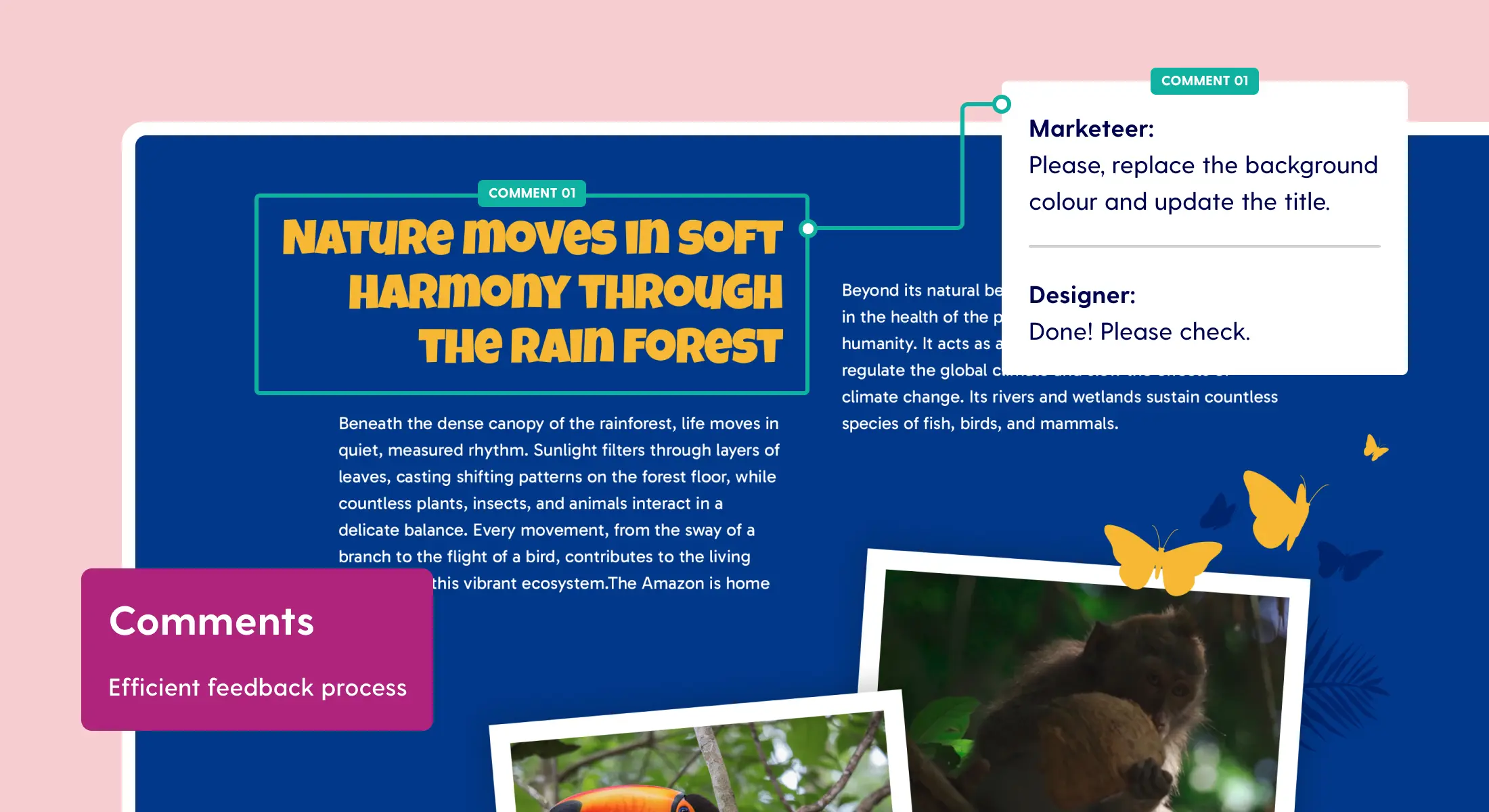
Any creative designer or marketer will understand the pain of a vague “It just needs more wow”-comment from that one colleague. While we cannot make the comments themselves any clearer, we can make the feedback process easier. You can now add comments to previews!
Getting started with comments on previews
Read the full update, or check out the Crash Course video below to get the full scope!
Enabling comments via preview settings
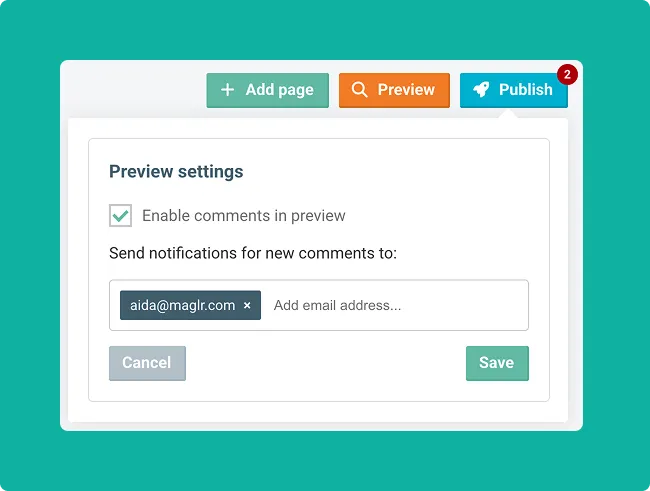
Go into the publish overview, and you’ll find a link for “preview settings”. These settings allow you to enable or disable comments at any time without the need to republish your preview. Upon generating the first preview for your project, the option will be disabled by default.
Entering commentary mode
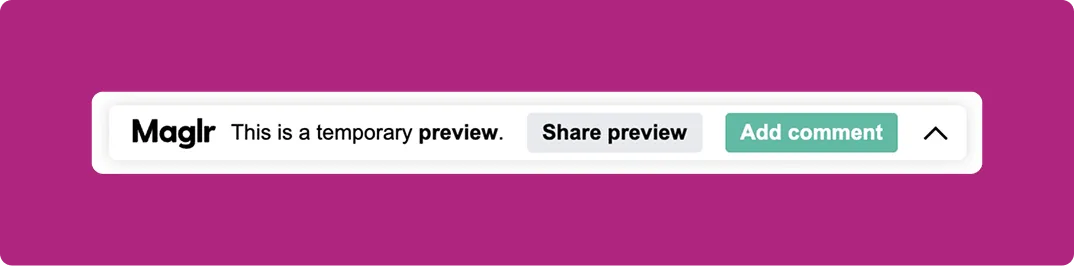
If comments are enabled, a button will show in the banner at the top of your preview. This button is visible to anyone with access to the preview.
Click “Add comment” to enter commentary mode. Before adding a comment, you will be prompted to “sign in” with a name and email address. Rest assured, you do not need a Maglr account to comment. These details are to inform designers of whom has commented and to send notifications of your comment’s status to your email.
Adding, editing, and deleting comments (on preview)
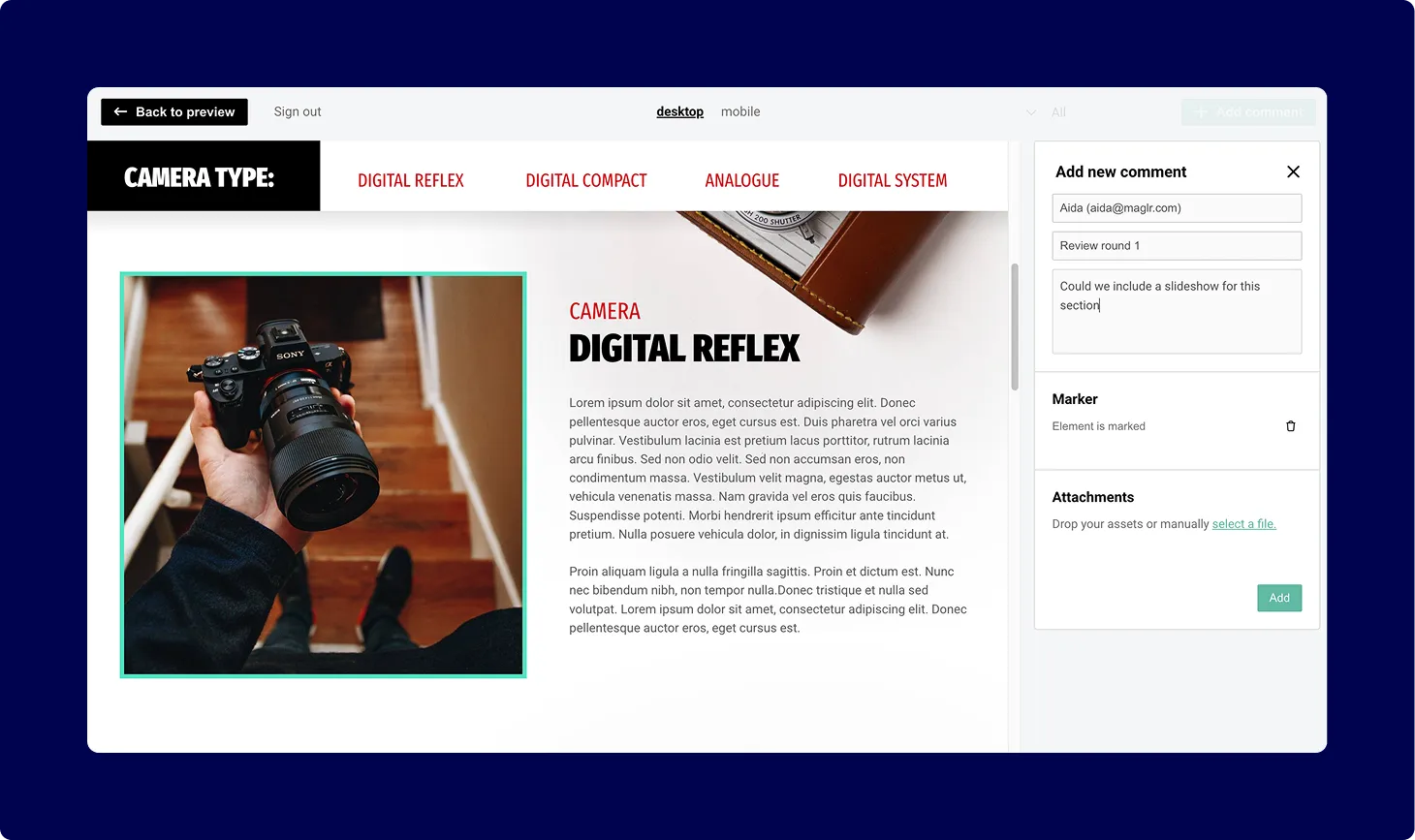
Click the “Add comment” button to start a new comment. You will see under which name you are commenting and in which round. The text field supports various types of markup as well as attachments such as images. Type your comment and hit “Add” to submit it to the current round.
If your comment is in relation to a specific element, you can mark it using a visual marker. Upon viewing the comment, the reader will be automatically scrolled to your selected element for context. However, a visual marker cannot be added for Block pages.
Editing
Come to find you made a mistake? Go to your comment and click on “edit” to make adjustments. By hovering over the date, you will see if and when a comment has been modified.
Deleting
Comments can be deleted. Simply go to your comment, click “delete”, and it will be removed from view. This action can be reversed, making your comment visible again.
Viewing and handling comments within the Pro editor
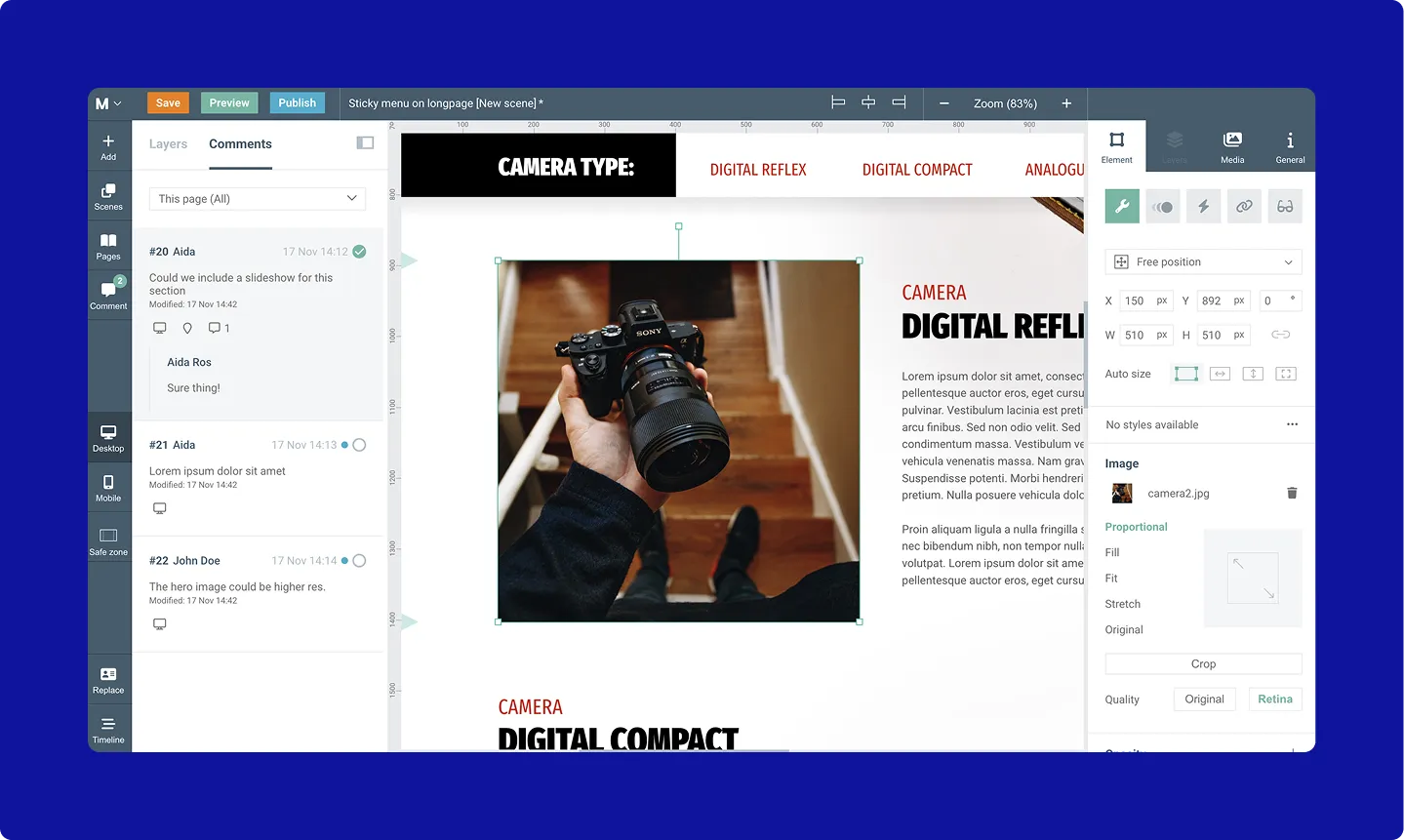
As a designer, you can view and process comments accordingly from within the Pro editor. Toggle the comments panel from the sidebar to the left. Filter by all comments in your project, the current page, or per round—whichever suits your fancy.
Visual markers
Sometimes, commenters will mark an element on the page that relates to their comment. If you see the visual marker icon, you can click on it to jump to the selected element.
Status changes
As the designer, you’re in charge of resolving comments. When you’ve implemented the “wow” that your colleague has asked for, you can click the checkbox to resolve the comment.
Replying
You can answer any comments or questions by replying to them. The comment’s author will receive an automated email notification. Your replies will be visible for all with access to the preview.
A couple of important notes
- Comments on previews are visible to all: An important thing to note, especially if you are the first commenter, is that your comments and replies are visible to everyone with access to the preview.
- Email notifications come in batches: To prevent spammy emails, we sometimes batch comments together and send them via email after a small delay. That means that someone may not be aware of your comment or reply right away.
Got feedback for us?
We’re always happy to hear from Maglr-users and whether new features actually make your design process easier. If you have feedback for us, please let us know via chat or at info@maglr.com!