New breadcrumb component, plus an offset option for scroll-to-element
We've added a breadcrumb component to the Pro editor, and given the "scroll to element" click action a new offset setting. Two additions, both about helping readers land where they should.
Breadcrumb component
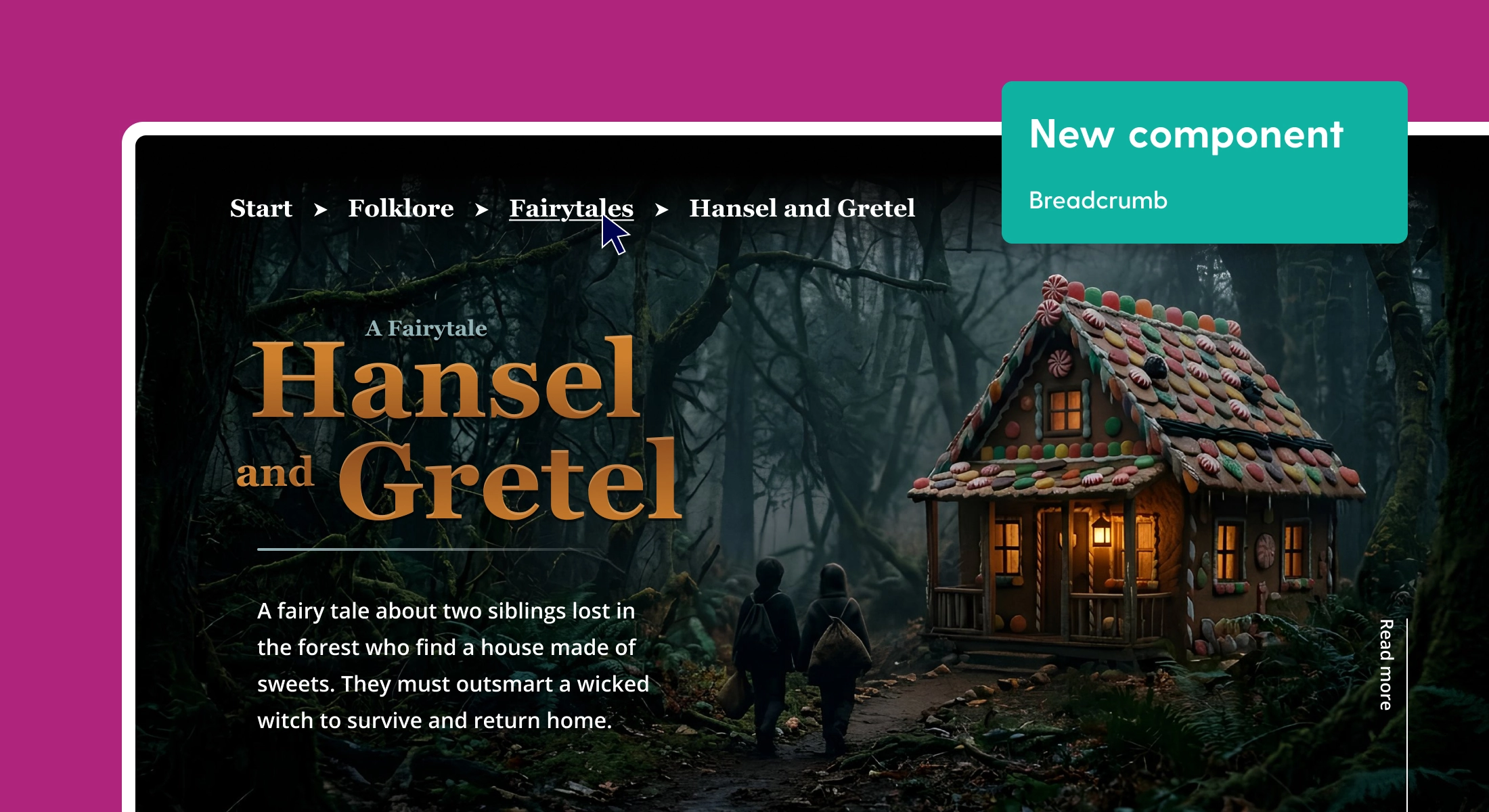
If your publication has multiple levels, such as main pages with subpages, and subpages with their own subpages, readers can lose track of where they are. The breadcrumb component shows them the navigational trail from the top of your publication down to the page they're on. Every earlier step is clickable, so they can jump back without digging through the table of contents.
The nice part: you don't have to configure the path by hand. The breadcrumb is built automatically from your page structure, so as long as your hierarchy is set up, the component does the rest. Drag it onto the canvas where you want it to appear and you're basically done.
From there you can style the "Container", "Item", "Active item", and "Separator" to match your design. The separator defaults to a text character like ›, but you can swap it for any character, leave it empty, or upload an SVG icon if you want something custom.
One thing to note: in the editor, you'll see a placeholder trail ("Page › Subpage"). The real breadcrumb component only shows up in the published version.
The breadcrumb component is most useful for publications with several levels of nesting. On a flat, single-level publication (or on the “root” level) there will be no trail to show.
Offset for scroll to element
When you set a click action to "scroll to element", the target used to land right at the top of the viewport. Which is fine, until you have a sticky header covering it, or the heading arrives flush against the browser edge with no breathing room.
The new offset setting fixes that. Add a positive or negative pixel value to nudge the landing position up or down, and readers land exactly where the section looks best.